
How to export a deadlock graph from SQL Diagnostic Manager : Idera Diagnostic Manager

Hi guys!

Today's post is on exporting a deadlock graph with Idera Diagnostic Manager.


Idera Diagnostic Manager is a great tool to track performance issues in your SQL environment. 


Let's get started.

Open the application:


Idera SQL Diagnostic Manager startup


Select the server:

Idera SQL Diagnostic Manager dashboard


Select the Sessions tab:

Idera SQL Diagnostic Manager Sessions


Select the Blocking option on the Sessions tab:


Idera SQL Diagnostic Manager Blocking


Select the History Browser :

Idera SQL Diagnostic Manager History Browser


Look for the culprit with a critical status of the Historical snapshots area in the bottom right:
a)


Idera SQL Diagnostic Manager History Browser


b)
Idera SQL Diagnostic Manager History Browser


c)

Idera SQL Diagnostic Manager History Browser


View session details for the culprit (session) that is causing all the issues:

a)

Idera SQL Diagnostic Manager Session Details


b) You can gather all the details to email to effected teams.

Idera SQL Diagnostic Manager Session Details


Go back to the session blocking view:

Idera SQL Diagnostic Manager Session Details


Under Deadlock Reports, double click the most recent deadlock and 'Export XDL' (the deadlock graph) to your download folder on the server.

Idera SQL Diagnostic Manager Deadlock Graph XDL


b) Name your deadlock graph like this:

Idera SQL Diagnostic Manager Deadlock Graph XDL


c) Hit 'Done' to close out the deadlock window.

Idera SQL Diagnostic Manager Deadlock Graph XDL


Locate your deadlock file and copy it to your desktop (ctrl c + ctrl v).

Idera SQL Diagnostic Manager Deadlock Graph XDL


Finally, email effected teams the deadlock information.
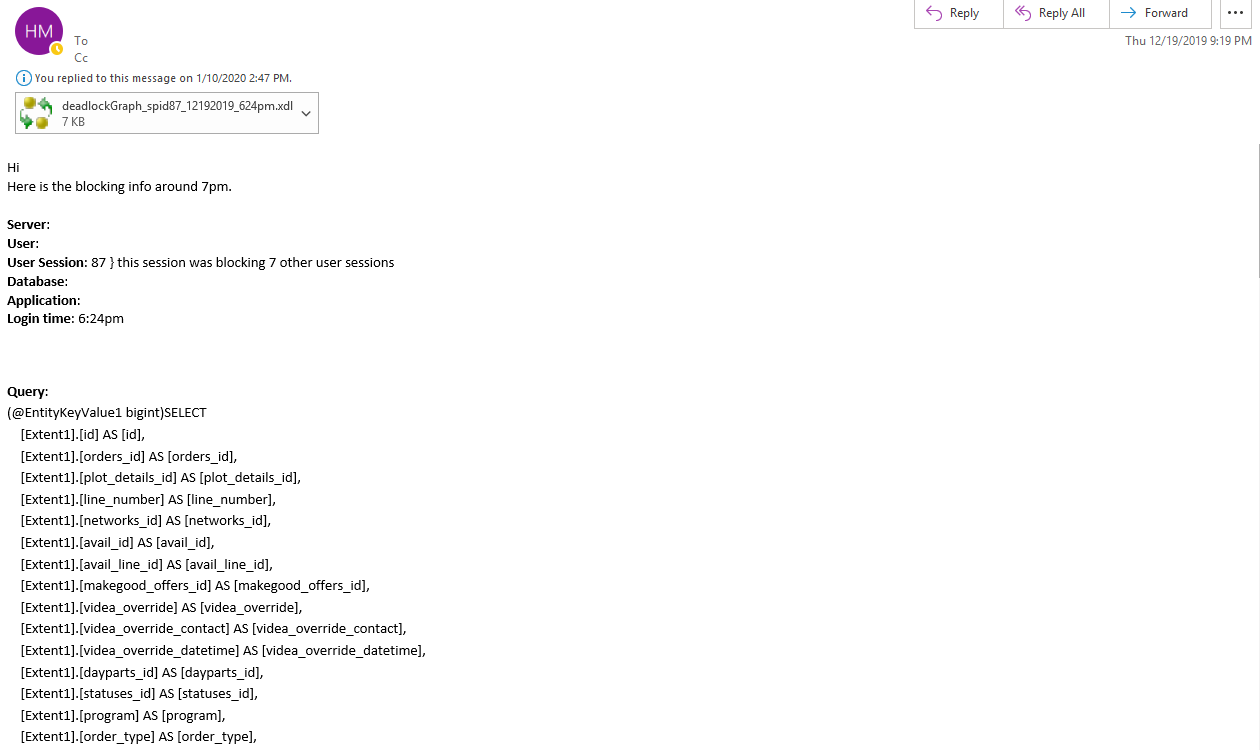

email deadlock graph details from Idera diagnostic manager


If you have any questions related to this post, please put them below.


Thank you and Happy reading,

-marshé hutchinson
#learnSQLwithme

Comments

Popular posts from this blog

Msg 14234, Level 16, State 1, Procedure sp_verify_job, Line 199 The specified '@owner_login_name' is invalid (valid values are returned by sp_helplogins [excluding Windows NT groups]).

Hi guys! Here's another quick and easy post. Scenario I was trying to copy a SQL agent job from one server to another by just copying the script of that SQL job. You can copy any script by right clicking a job > Script job as > create to > new query window. I pasted the job on a different server and tried to execute it and received this error: Msg 14234, Level 16, State 1, Procedure sp_verify_job, Line 199 The specified '@owner_login_name' is invalid (valid values are returned by sp_helplogins [excluding Windows NT groups]). This error message is simply saying for the variable '@owner_login_name', the user account associated with the variable is incorrect because it does not exist. Fix Simply update the variable for '@owner_login_name' to a valid user account for the current SQL instance. Now when you execute the script again to create the SQL agent job your results will be: Command(s) completed successfully. If you have any furt...

ERROR: must be owner of database databaseName - postgres error

Hi everyone! Today's post is about Postgres SQL. In my environment we are using Postgres SQL as one option for the backend of AWS (Amazon Web Services). That's right. We also have another option - MySQL. This post however will focus on the Postgres SQL error: "ERROR: must be owner of database databaseName" Scenario : I encountered this error when I was trying to drop a database from an AWS cluster. Amazon allows you to group databases inside of containers. These containers still have the same logic as SQL schemas which hold our database in SQL server. You can read more about AWS clusters here . Solution : This is very easy. It's in the error. All I have to do is make myself the owner of the database so I can delete the database. I. If your user account does not already have read/write privileges, then you will need to sign in to the Postgres cluster with an admin account so you can grant read/write access to your user account. II. If your ...

How to export SQL agent jobs from your SQL Server instance

Hi everyone! As a database administrator, you always need a copy of your data and data processes for: migrating servers disaster recovery backup procedures/best practices This post covers a simple Powershell script. The script is to take a backup of all the SQL agent jobs on your SQL server instance. If you ever needed to recreate all the jobs on another server, all you would have to do is execute the SQL script. I. In SSMS (SQL Server Management Studio), create an empty .SQL file and save it with this naming convention: I.e. SqlAgentJobs_PROD01.sql } This file will represent all the SQL agent jobs on the primary production SQL server. II. Copy the "SqlAgentJobs_PROD01.sql" file from above to a network share. III. Run the Powershell script below in  Powershell ISE as administrator: ##migrating jobs from one server to another with the replace command $SqlConnection = New-Object System.Data.SqlClient.SqlConnection $SqlConnection.ConnectionStrin...